
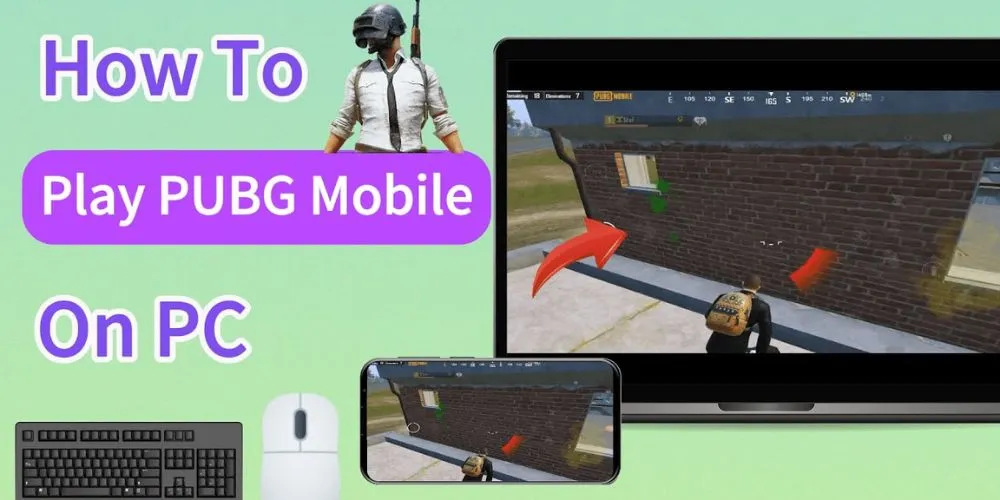
How To Play Pubg Mobile On Pc (A Clear And Safe Guide For Beginners)
Playing PUBG Mobile on a phone is fun, but it is not always comfortable. The screen feels small, aiming can be tricky, and long gaming sessions can strain your hands. Many players reach a point where they want more control and a better view of the battlefield.
In this article, we will show you how to play PUBG mobile on PC in a safe and practical way. You will learn what options are available, what works on different Windows versions, and what rules you should follow to protect your account. If you are thinking about switching from mobile to PC, this guide will help you make the right decision.
What Does It Mean to Play PUBG Mobile on PC?
PUBG Mobile is designed for smartphones, not computers. Playing it on a PC means running the mobile version in a controlled environment that mimics a phone. This allows the game to function while giving you access to a larger screen and better input devices.
This setup does not turn PUBG Mobile into a true PC game. Instead, it gives you a different way to experience the same mobile gameplay with improved comfort.
Why Many Players Prefer Playing on PC
These benefits make PC gameplay appealing, especially for competitive players or those who play daily. There are practical reasons why players search for how to play PUBG mobile on PC.
- A larger display helps you spot enemies more clearly
- Keyboard and mouse offer better aiming accuracy
- Longer sessions feel more comfortable
- Stable internet connections reduce lag
How to Play PUBG Mobile on PC Without Emulator
For safety, avoid shortcuts that promise “no emulator” solutions. Many players ask about how to play PUBG mobile on PC without emulator, but it is important to understand the limits.
PUBG Mobile does not have a native PC version. Any claim of running it directly on PC without a mobile environment is misleading. Such methods often involve modified files or unsafe software.
Using unofficial tools can lead to:
- Account suspension
- Permanent bans
- Security risks
PUBG Mobile PC Tencent and Why It Matters
If account safety is your priority, this approach matters. The safest and most reliable approach is often referred to as PUBG Mobile PC Tencent. This option is designed to keep gameplay fair. PC users are placed in separate lobbies from mobile players, reducing unfair advantages. Anti-cheat systems are also active in this environment.
Key advantages include:
- Official game files
- Fair matchmaking
- Lower risk of bans
How to Play PUBG Mobile on PC Windows 11
With the right setup, gameplay on Windows 11 feels stable and responsive. If you are using Windows 11, compatibility is usually strong. Windows 11 supports modern graphics drivers and virtualization features, which helps PUBG Mobile run smoothly. To get better results, make sure your system settings are optimized.
Helpful steps include:
- Updating your graphics drivers
- Enabling virtualization in BIOS
- Closing background applications
How to Play PUBG Mobile on PC Windows 10
Windows 10 remains one of the most commonly used systems for PUBG Mobile on PC. For players on Windows 10, the experience is still very reliable. Windows 10 supports most mobile environments without issues. Performance depends more on your hardware than the operating system itself. To improve stability:
- Keep Windows updated
- Allocate enough RAM
- Adjust in-game graphics settings
How to Play PUBG Mobile on PC Windows 7
For long-term use, upgrading your operating system is a better option. Using Windows 7 comes with limitations. Windows 7 is no longer officially supported by many platforms. This can cause performance drops or compatibility problems. If you must use Windows 7:
- Keep graphics settings low
- Avoid multitasking during gameplay
How to Play PUBG Mobile on PC Free
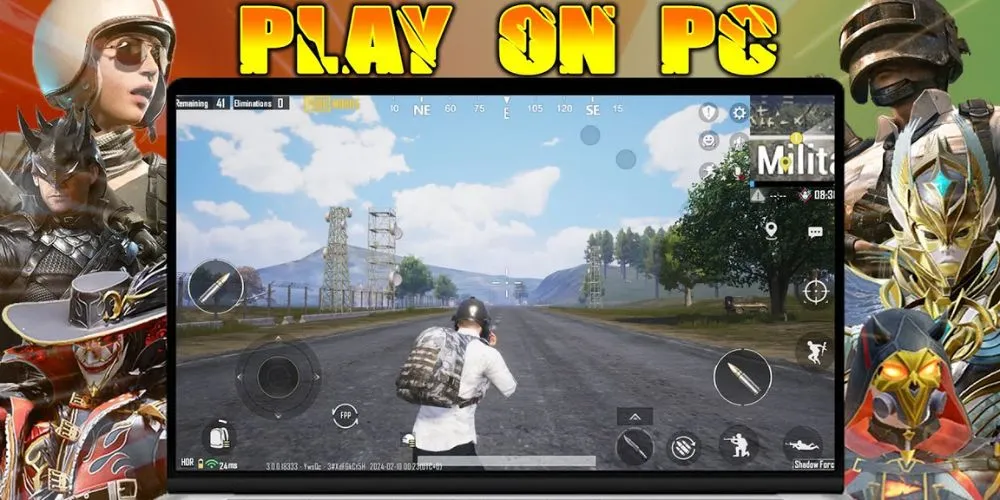
There are no mandatory costs to access the game. A common concern is how to play PUBG mobile on PC free. PUBG Mobile itself is free to play. You do not need to purchase the game. However, you still need:
- A compatible PC
- Stable internet
- Enough storage space
How to Play PUBG Mobile on PC With Controller
Some players prefer controllers over keyboard and mouse. When looking into how to play PUBG Mobile on PC with controller, keep expectations realistic. Controller support exists, but it is limited. Most competitive players still prefer keyboard and mouse due to faster response and better precision. Controllers may be suitable if:
- You prefer console-style gameplay
- You play casually rather than competitively
Can You Play PUBG Mobile on PC With Mobile Players
This system prevents unfair advantages and maintains balance. Many players wonder, can you play PUBG mobile on PC with mobile players? The answer is no. To keep matches fair:
- PC players are grouped with other PC users
- Mobile players remain in touch-only lobbies
Hardware Requirements You Should Know
Your PC does not need to be high-end, but basic requirements matter.
Minimum requirements:
- 4 GB RAM
- Dual-core processor
Recommended setup:
- 8 GB RAM
- Dedicated graphics card
- SSD for faster loading
Better hardware leads to smoother performance and fewer crashes.
Simple Tips for Better PC Performance
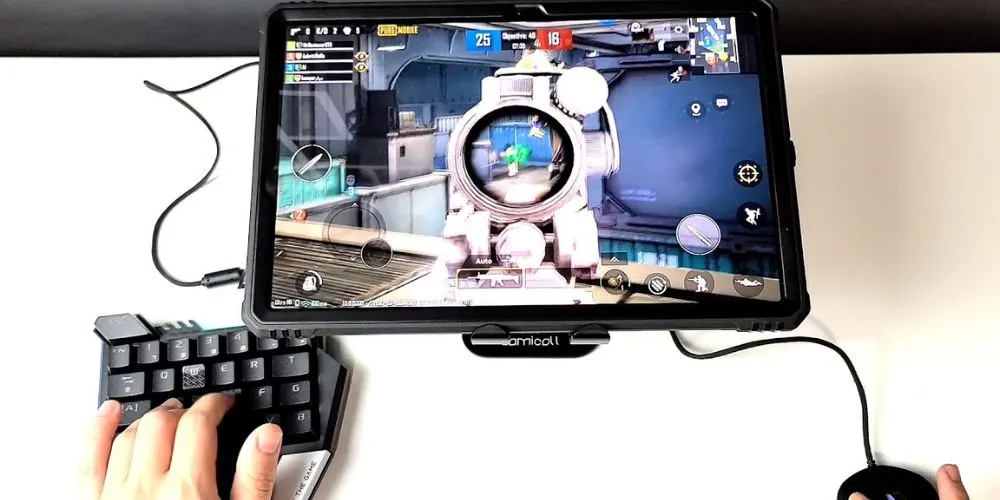
These changes help reduce lag and input delay. Small adjustments can improve your experience.
- Lower shadow quality
- Enable high FPS mode
- Use a wired internet connection
A Note on Other PC Gaming Options
If you enjoy PC gaming beyond mobile titles, many players also explore platforms that offer weekly free content like Epic Games Free Games. This can be a good way to expand your gaming library while staying on PC.
Final Thought’s
Understanding how to play PUBG mobileon PC helps you enjoy the game with better comfort and control. A larger screen, precise aiming, and stable performance can change how the game feels.
As long as you follow official methods, respect the rules, and optimize your system, playing PUBG Mobile on PC can be both safe and enjoyable. Take your time setting things up correctly, and you will notice the difference from your very first match.
Frequently Asked Questions
1. How to play PUBG Mobile on PC without getting banned?
Use official and approved methods only. Avoid cheats, mods, or altered files. Playing within supported environments keeps your account safe.
PUBG Mobile requires a mobile-based environment on PC. Log in with your account and play in PC-matched lobbies.
You cannot convert the game into a PC version. However, your account progress syncs when you log in on PC.
Install a supported mobile environment on Windows 10, sign in, and download PUBG Mobile from within it.