
How To Stop Windows 11 Update Without Losing Control
You turn on your computer, ready to work, and suddenly everything slows down. A restart message appears, fans get louder, and you realize Windows is updating again. We’ve all felt that moment of frustration. If you’re searching for how to stop windows 11 update, you’re not trying to avoid security. You’re trying to protect your time, your workflow, and sometimes even your data.
In this guide, we will show you how Windows 11 updates really work, why they feel forced, and the safe ways you can stop, pause, or control them without breaking your system. Whether you want a temporary pause or long-term control, this article walks you through it calmly and clearly.
Why Windows 11 Pushes Updates So Hard
This is why many users look for ways to stop or control updates rather than letting Windows decide everything. Before learning how to stop windows 11 update, it’s important to understand why updates feel unavoidable.
Windows 11 is designed around automatic security maintenance. Updates are no longer just optional feature improvements. They include security patches, driver updates, and system stability fixes bundled together. From Microsoft’s perspective, this reduces risk. From a user’s perspective, it often removes choice.
Forced updates can:
- Restart your system without warning
- Break older drivers or software
- Slow down performance on older hardware
- Interrupt work, gaming, or meetings
How To Stop Automatic Updates Windows 11 The Safe Way
The safest approach is not disabling updates completely, but controlling when they happen. Windows 11 allows you to pause updates directly from system settings. This method doesn’t damage files or registry values and is ideal for most users.
You can pause updates for several weeks, which is usually enough to finish important work or wait for a stable patch release. This option is especially useful if your goal is how to stop updates on windows 11 without advanced system changes. Pausing updates tells Windows you are still compliant, just not right now.
Windows 11 How To Stop Updates Using Network Settings
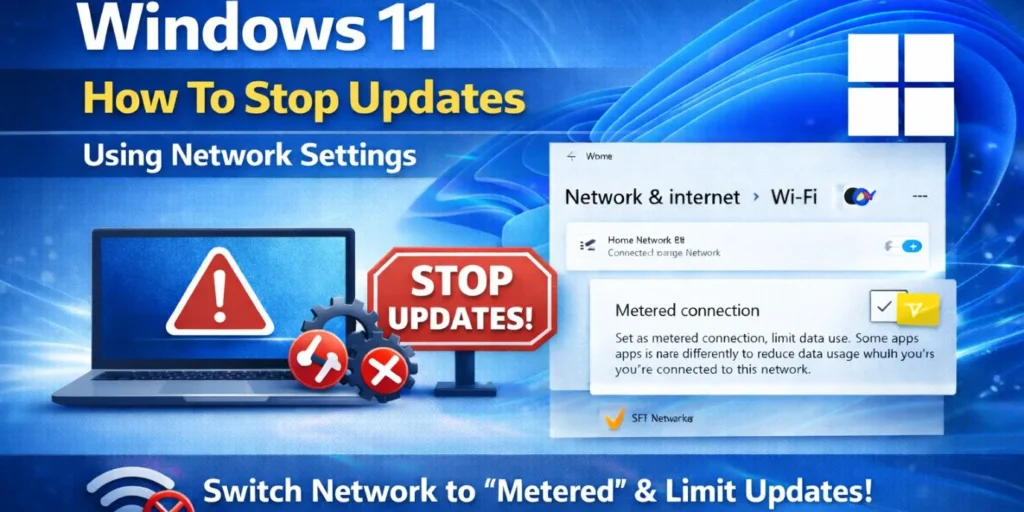
Another reliable method involves controlling how Windows uses your internet connection. When you set your network as metered, Windows assumes data is limited and avoids downloading large updates automatically.
This does not disable updates forever, but it prevents surprise downloads in the background. This method works particularly well on laptops and home systems and doesn’t interfere with core system services. It’s a quiet but effective way to manage update behavior without touching system files.
How To Stop Windows Update in Progress Windows 11
Sometimes updates are already downloaded or stuck on a screen that won’t move. This is where users panic. If an update is clearly frozen or endlessly looping, you can stop the Windows Update service. This immediately halts the process.
If the update is still downloading, stopping it is usually safe. If the update is installing system files, stopping it can cause corruption. This method should only be used when necessary and answers how to stop windows update in progress windows 11 when nothing else works.
How To Stop A Specific Drivers From Updating Windows 11
One of the biggest complaints with Windows 11 updates is driver replacement. A working graphics, printer, or audio driver suddenly stops working after an update. Windows allows you to block automatic driver updates while still receiving security patches.
Read this blog: Generative AI Be Used in Cybersecurity
This gives you fine control instead of an all-or-nothing approach. If your main concern is how to stop a specific drivers from updating windows 11, this is the smartest solution. You keep stability without sacrificing security.
How To Stop Windows 11 Update In Windows 10
Many users are still on Windows 10 and don’t want to upgrade yet. Windows 10 aggressively promotes Windows 11 through update prompts, notifications, and background downloads. You can stop this by locking your system to a specific version of Windows 10 and disabling feature upgrade prompts.
This does not stop security updates. It only prevents the operating system upgrade.If you’re searching for how to stop windows 11 update in windows 10, this approach keeps your system stable while staying supported.
Why Completely Disabling Updates Is Risky
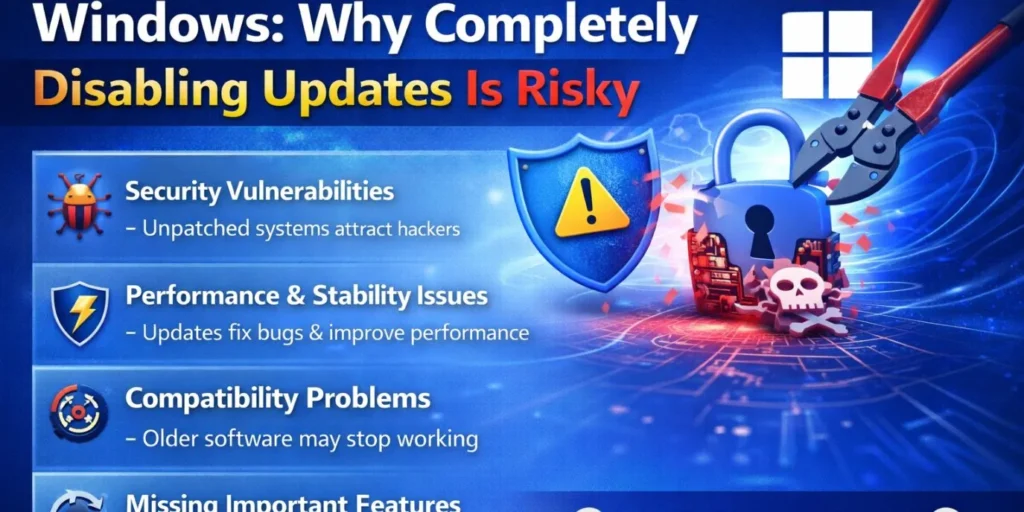
That’s why professionals recommend controlled updates instead of permanent blocks. Knowing how to stop windows 11 update responsibly means choosing balance, not extremes. It’s tempting to shut everything off. But doing so can backfire. When updates are completely disabled:
- Security vulnerabilities remain unpatched
- New software may stop working
- System bugs remain unresolved
One Practical Section Where Bullets Actually Help
Following these habits gives you long-term control without system damage. Here’s one place where bullets make sense. These are safe and smart update-control practices you can follow:
- Pause updates during work-heavy weeks
- Allow updates once a month manually
- Block driver updates instead of system updates
- Avoid interrupting updates during installation
- Restart only after updates complete
What Happens If You Interrupt A Windows 11 Update?
Interrupting an update doesn’t always break your PC, but the stage matters. If interrupted during download, Windows usually resumes later without issues.
If interrupted during installation, files can become corrupted, leading to boot errors. That’s why knowing how to stop windows update in progress windows 11 at the right moment is critical.
Final Thought
Understanding how to stop windows 11 updates is about control, not avoidance. Windows 11 is built to update automatically, but that doesn’t mean you have no say.
By pausing updates, using metered connections, blocking driver updates, or preventing unwanted upgrades from Windows 10, you can keep your system stable and predictable. The smartest approach is not fighting updates, but managing them on your terms. When you control updates, your system works for you, not against you.
FAQ’s
You can pause updates from settings or limit them using a metered internet connection.
Yes, but it’s safest to stop updates only during download, not during installation.
You can stop the Windows Update service if the update is stuck or looping.
Interrupting during download is usually safe. Interrupting during installation can cause system issues.